> For the complete documentation index, see [llms.txt](https://docs.goproxies.com/llms.txt). Markdown versions of documentation pages are available by appending `.md` to page URLs; this page is available as [Markdown](https://docs.goproxies.com/proxies/integrations/browsers/chrome.md).
# Chrome
Chrome Browser's GoProxies Proxy Setup Guide
### Intro
This page will explain how to connect your proxies directly on your Chrome Web browser settings without the need of any addons.
### Requirements
To have GoProxies work in your browser, ensure that:
* No other VPN or proxies are active.
* You have the GoProxies endpoints ready, e.g proxy.goproxies.com:1080, or proxy-america.goproxies.com:1080
* Your GoProxies subuser (also called API User) username and password.
### Setup
1. Open Google Chrome.
2. Click the three vertical dots  in the top right of the browser.
3. Select Settings.
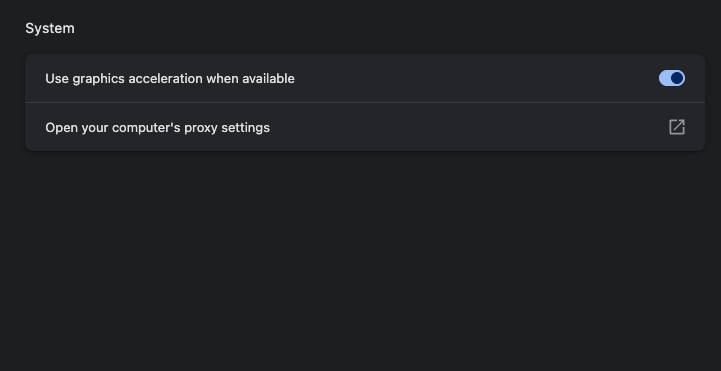
4. Go to the Systems tab on the left.
5. Click "Open your computer's proxy settings"
You will be redirected to the system configuration screen. This step will vary depending on your operating system (Windows or MacOS)
### macOS Setup
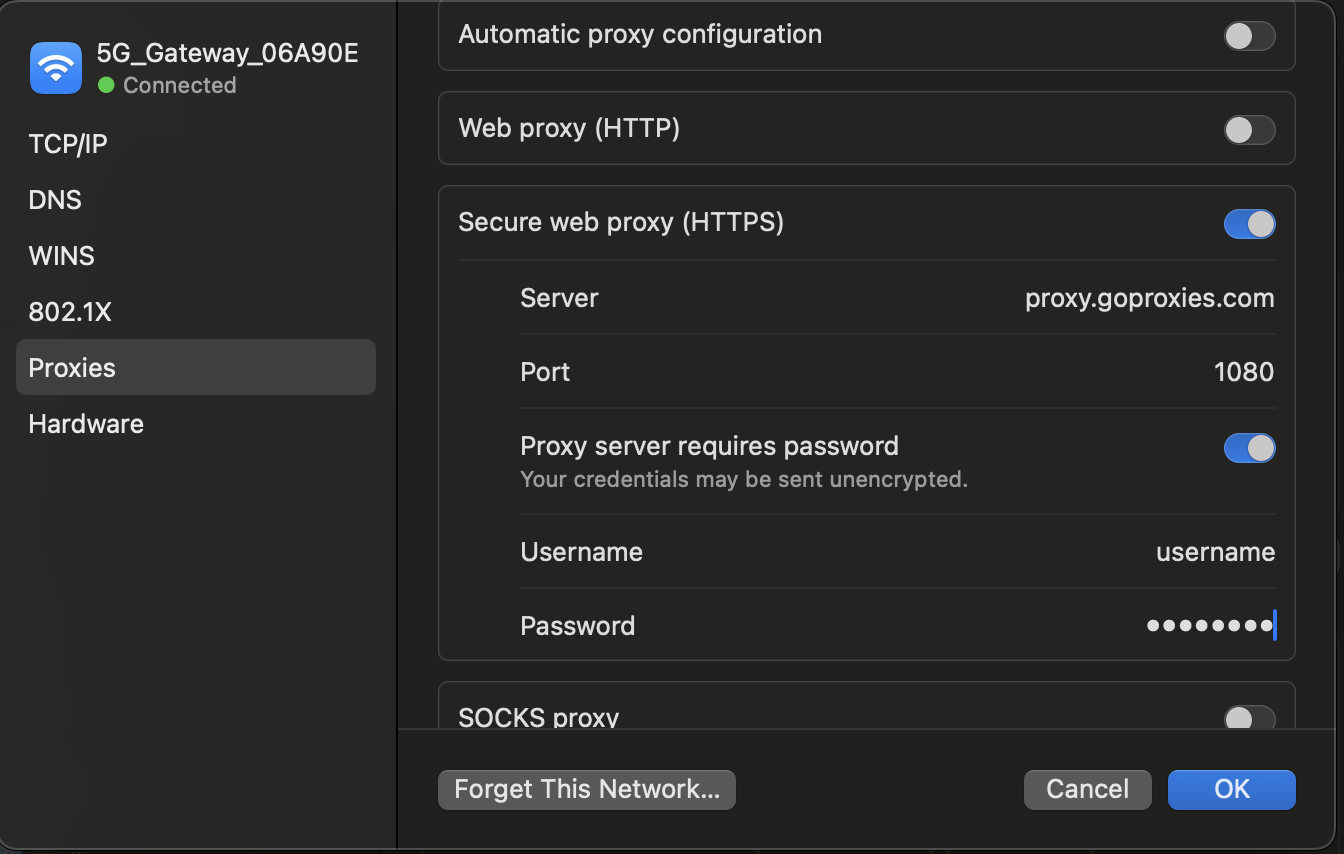
1. Select HTTP, HTTPS, or SOCS protocol
2. Fill in the following fiellds:
* Server: proxy.goproxies.com, or replace 'proxy' with one of the regions: proxy-america, proxy-europe, proxy-asia for Americas, Europe and Africa, Asia and Oceania, respectively.
* Port: 1080
3. Set up the Authentication
* Toggle on Proxy server requires password
* Username: Proxy username
* Password: Proxy password
4. Click OK.
### Windows Setup
{% hint style="info" %}
SOCKS5 Support\
\
Windows 10 and Windows 11 don't support SOCKS5 natively. You may alternatively use a web browser or a third-party tool that includes SOCKS5 support, e.g Mozilla Firefox or FoxyProxy Extension
{% endhint %}
1. Enable Use a proxy server
2. Fill in the following fields:
* Proxy IP Address - proxy.goproxies.com, or replace 'proxy' with one of the regions: proxy-america, proxy-europe, proxy-asia for Americas, Europe and Africa, Asia and Oceania, respectively.
* Port: 1080
3. Check "Don't use the proxy server for local (intranet addresses)
4. Click Save.
### Verify The Connection
* Open the Chrome browser and visit ip.goproxies.com
* You may be prompted to enter credentials. Enter the previously specified proxy username and password.
* If successful, your IP address will reflect the location of the proxy.
---
# Agent Instructions
This documentation is published with GitBook. GitBook is the documentation platform designed so that both humans and AI agents can read, navigate, and reason over technical content effectively. Learn more at gitbook.com.
## Querying This Documentation
If you need additional information that is not directly available in this page, you can query the documentation by asking a question.
Perform an HTTP GET request on the following URL with the `ask` and `goal` query parameters:
```
GET https://docs.goproxies.com/proxies/integrations/browsers/chrome.md?ask=&goal=
```
`ask` is the immediate question: it should be specific, self-contained, and written in natural language.
`goal` is what the user is ultimately trying to achieve, the reason they need the answer. Sharing it helps GitBook give you a better, more relevant answer. A goal is most helpful when it describes the outcome the user wants rather than restating the question. For example, with `ask=how do I create an API token`, a goal like `automate deployments from our CI pipeline` lets GitBook tailor the answer to that use case.
The response will contain a direct answer to the question and relevant excerpts and sources from the documentation.
Use this mechanism when the answer is not explicitly present in the current page, you need clarification or additional context, or you want to retrieve related documentation sections.